450,000 New Viruses Daily. Your Computer Needs Better Protection
Your computer holds everything. Bank logins. Family photos. Work files. Tax documents. All sitting there, waiting for the wrong person to find them.
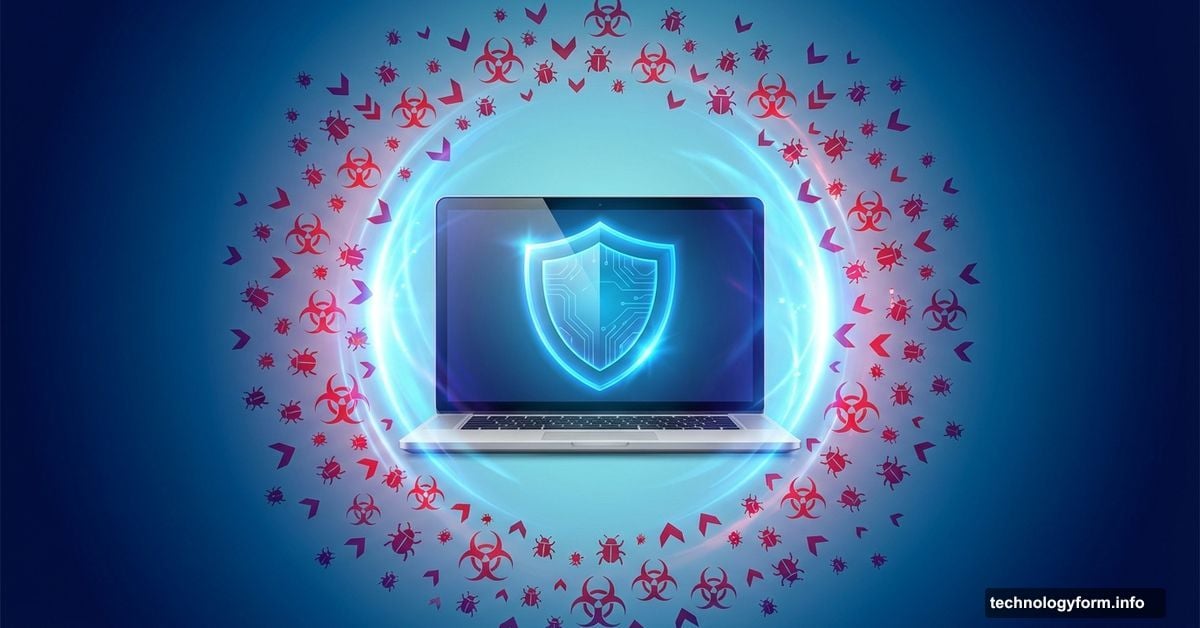
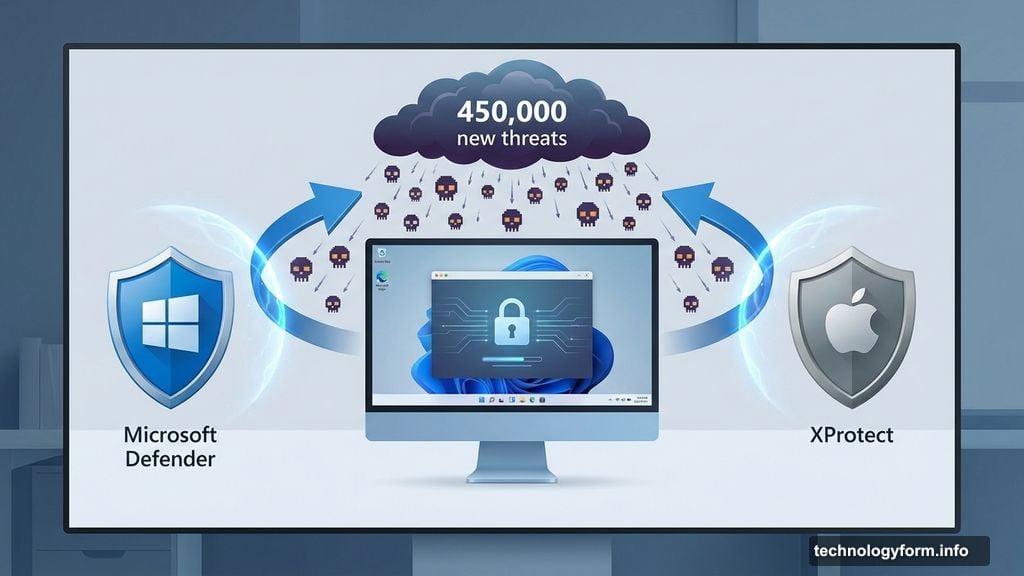
Here’s the scary part: cybercriminals create roughly 450,000 new malicious programs every single day. That’s not a typo. Half a million new threats appear daily, each designed to steal data, lock you out of your device, or quietly spy on everything you do.
So how do you protect yourself? Let’s cut through the noise and focus on what actually works.
Your Computer Already Has Protection (Probably)
Good news first. Both Windows and Mac come with built-in antivirus tools that most people never even know exist.
Windows includes Microsoft Defender. It scans every download for malware and runs automatic checks in the background. Plus, you can trigger manual scans whenever you want.
Mac offers two layers: Notarization and XProtect. Notarization blocks sketchy apps from the App Store and prevents anything suspicious from running. XProtect catches malware from other sources and stops it before it causes damage.
These tools should be enabled by default. But it’s worth checking.
On Windows, go to Windows Security > Virus & Threat Protection > Virus & Threat Protection Settings. Make sure Real Time Protection is toggled on.
For Mac, navigate to System Settings > General > Software Update. Look for the option to “Install system data files and security updates” (or “Install security responses and system files” on newer versions). That checkbox needs to be marked.
When Built-In Protection Isn’t Enough
Microsoft Defender and XProtect work well for most people. But sometimes you need more.
Consider third-party antivirus software if you want to schedule custom scans. Windows Defender makes this unnecessarily complicated through Task Scheduler. Mac doesn’t offer the option at all.
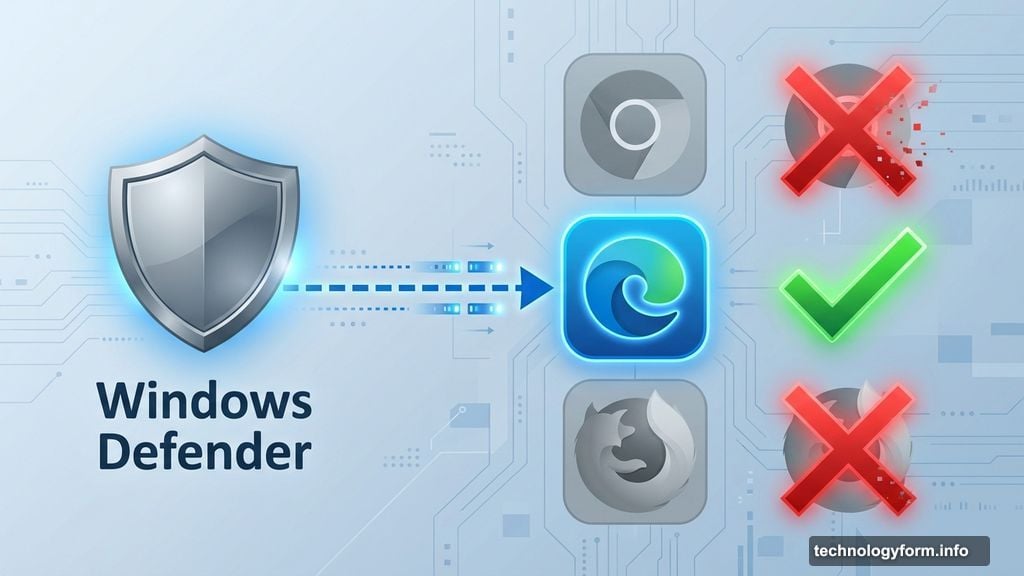
Also, both tools limit browser protection to their native browsers. Microsoft Defender only fully protects Edge. XProtect only covers Safari. If you use Chrome or Firefox, you’re missing crucial protection.
Many premium antivirus programs bundle extra security features too. Scam protection, parental controls, identity theft monitoring, and data cleanup tools all come standard with top-tier options.
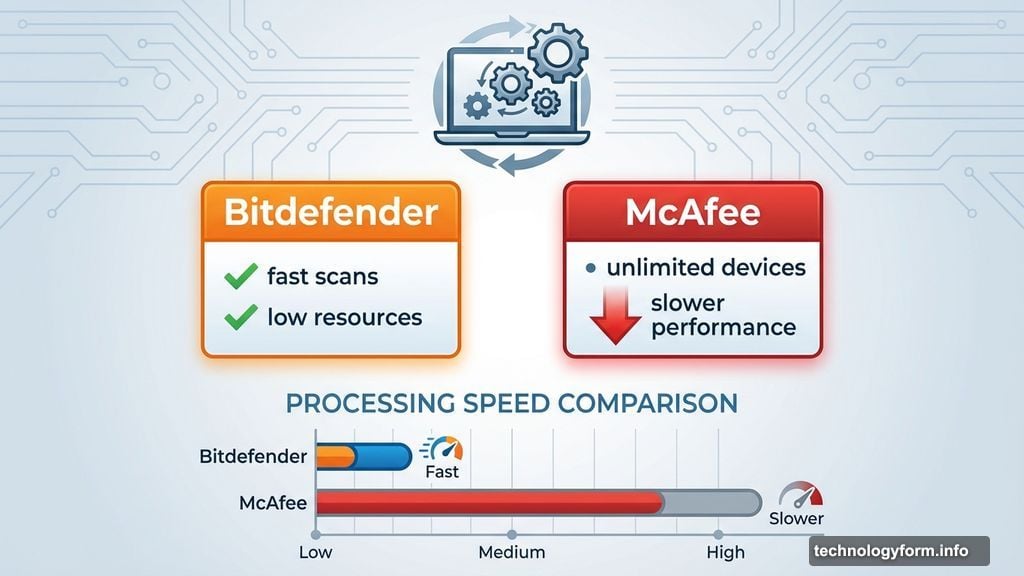
Bitdefender stands out as the best choice for most people. It runs fast, even during deep scans. Plus, it won’t drain your computer’s resources like some alternatives do.
Bitdefender’s Ultimate Security packages include ad-blocking, anti-tracking, scam detection, and dark web monitoring. Higher tiers add identity theft protection. The bundled VPN isn’t great though, so consider buying a separate one.
McAfee offers similar features with an excellent account cleanup tool. You can also install it on unlimited devices at no extra cost. But it runs slower than Bitdefender and uses significantly more processing power.
For budget-conscious users, AVG Antivirus offers a solid free version with decent protection.
Firewalls Block Threats Before They Arrive
Antivirus software catches malware after it reaches your computer. Firewalls stop threats before they get that far.
Both Windows and Mac include built-in firewalls that scan incoming data for suspicious activity. They should be enabled automatically, but verify this to be safe.
On Windows, open Windows Security and click Firewall & network protection. Every setting should say “Firewall is on.”
For Mac, go to System Settings > Network > Firewall to see your active settings.
Premium antivirus programs typically include proprietary firewall tools with more advanced options than the built-in versions. These activate automatically when you install the software.
Updates Patch Security Holes
Security patches fix vulnerabilities that hackers exploit. Microsoft and Apple release these updates constantly.
Install them promptly. Not necessarily the instant they drop, but don’t wait a week either.
The same goes for programs like web browsers. Always use the latest version to ensure you have current security patches.
Pro tip: Updates sometimes cause problems. Back up important files before installing updates so you won’t lose anything if something goes wrong.
Spyware Steals Data Silently
Spyware isn’t technically a virus, but it’s just as dangerous. This software collects your personal information and sends it to third parties who sell your data or use it for worse purposes.
Your operating system’s security tools provide basic spyware protection. Third-party software offers better defense.
Most premium antivirus programs include spyware protection as a core feature. Some, like AVG, provide it as a separate tool that needs independent configuration.
Phishing Scams Trick You Into Danger
Phishing involves someone pretending to be a trusted source (like your bank) and asking you to take action. Usually they want personal information, but sometimes they trick you into clicking malware-infected links.
Watch for these red flags:
Fake email addresses that slightly differ from real ones. Scammers might use “paypal1.com” instead of “paypal.com.”
Generic greetings like “dear customer” instead of your actual name.
Suspicious links. Hover over any link to see the actual URL before clicking.
Slightly altered logos that don’t quite match the real company’s branding.
Fake invoices for products you never bought or from companies you don’t work with.
Here’s a smart strategy: if an email looks legitimate but comes from an unfamiliar address, contact the company directly through their official customer service channels. They’ll confirm whether they need anything from you.
Many antivirus tools offer scam protection that scans your email and texts for suspicious messages. These tools catch obvious scams and many sophisticated ones too, but they’re not perfect. You still need common sense.
Download Files From Trusted Sources Only
Good antivirus software blocks many malicious downloads. But your safest bet is avoiding them entirely.
Only download files directly from official creators or distributors. Check that the URL matches the company’s real website.
Look for “HTTPS://” at the start of the URL. This means data sent to and from the site is encrypted, making it harder for attackers to intercept.
Research unfamiliar websites before downloading anything. Sometimes legitimate-looking software contains hidden malware. Search “(company name) malware” to see if others have reported problems.
Most importantly, pay attention to antivirus warnings. These notifications exist to protect you from threats that pass your initial checks.
Control Who Uses Your Device
You can take every precaution, but they’re worthless if someone else downloads a virus onto your computer.
Ideally, nobody else uses your device. Use a strong password to prevent unauthorized access.
If you must share your computer, create separate accounts for other users. Both Windows and Mac let you customize permissions for these accounts. You can prevent them from downloading programs or modifying your computer without your password.
Protect Kids Online
Kids make easy targets for digital threats. If they use your computer, they put your device at risk too.
Use parental controls like Microsoft Family Safety or Mac Parental Controls. These tools filter unsafe content, set screen time limits, and block specific apps.
Educate your kids about online safety. Explain what viruses are and show them how to identify untrustworthy links and emails. Resources like Be Internet Awesome offer comprehensive online safety education.
Pay attention to your kids’ online activities without micromanaging. Ask about their favorite websites and who they interact with online. Create an environment where they feel safe admitting mistakes, like accidentally downloading a virus.
Back Up Everything Important
Even the best security can’t prevent every problem. Prepare for things to go wrong by backing up your data regularly.
Use both cloud storage and an external hard drive for maximum security. Update these backups at least once a week if you’re actively modifying files.
This protects you not just from viruses, but from hardware failures, accidental deletions, and countless other issues.
Your digital life lives on your computer. Don’t wait until disaster strikes to protect it. The threats are real, numerous, and growing every day. But with the right tools and habits, you can keep your data safe.