Fed Up With Google’s AI? Here’s How to Turn It Off
Google’s AI is everywhere now. Open Gmail, and Gemini wants to write your emails. Search for anything, and AI Overviews crowd the top of your results. Open Google Docs, and a chatbot hovers nearby, waiting to help whether you want it or not.
The good news? You don’t have to accept all of it. The not-so-great news? There’s no single off switch. Dialing back Google’s AI means hunting through settings and disabling things one by one. Plus, some of the AI tools are bundled with features you might actually like, so you’ll need to make a few trade-offs along the way.
Here’s exactly how to take back control.
Google Workspace Smart Features Are the First Thing to Cut
The biggest win comes from turning off Google Workspace smart features. This one change strips AI out of Gmail, Google Drive, Docs, Sheets, and Slides all at once. That’s a serious reduction in AI presence across the apps most people use every day.
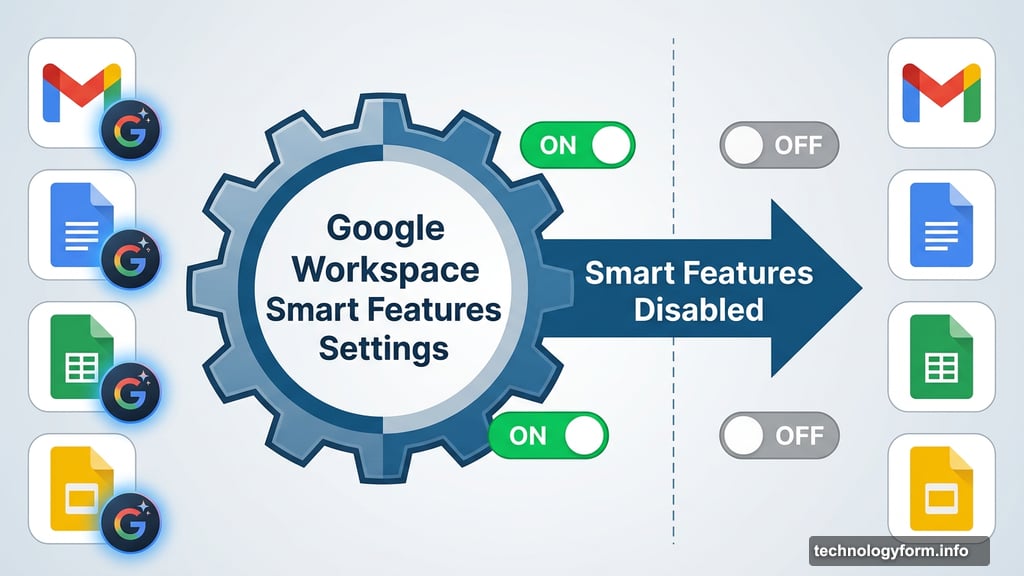
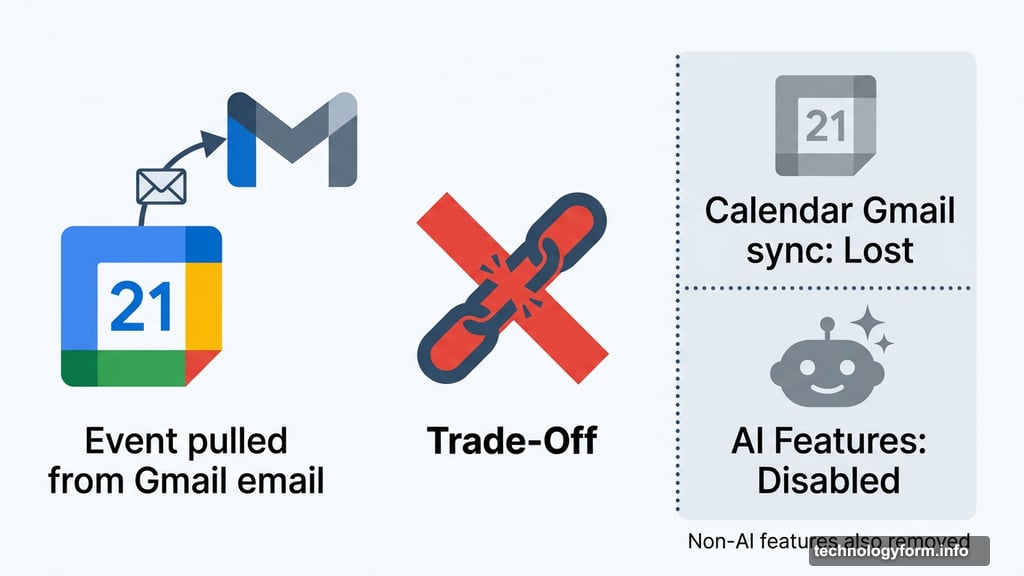
But there’s a catch worth knowing about before you flip the switch. Turning this off also removes some genuinely useful non-AI features. Google Calendar’s ability to pull events directly from Gmail emails? Gone. Personalized search results that learn your preferences over time? Also gone. So weigh that trade-off honestly before you proceed.
If you’re ready to move forward, here’s how to do it:
- Sign in to your Gmail account
- Click the settings icon (the gear in the top-right corner)
- Select See all settings
- Stay on the General tab and scroll down to the Google Workspace smart features section
- Click Manage Workspace smart feature settings
- Toggle off both options: Smart features in Google Workspace and Smart features in other Google products
That’s it. It takes about two minutes, and you’ll notice the difference immediately. Worth noting: Gemini icons won’t fully disappear from the interface. Google keeps them visible so you can re-enable things easily, but the underlying AI features themselves will be switched off.
AI Overviews Are a Separate Battle
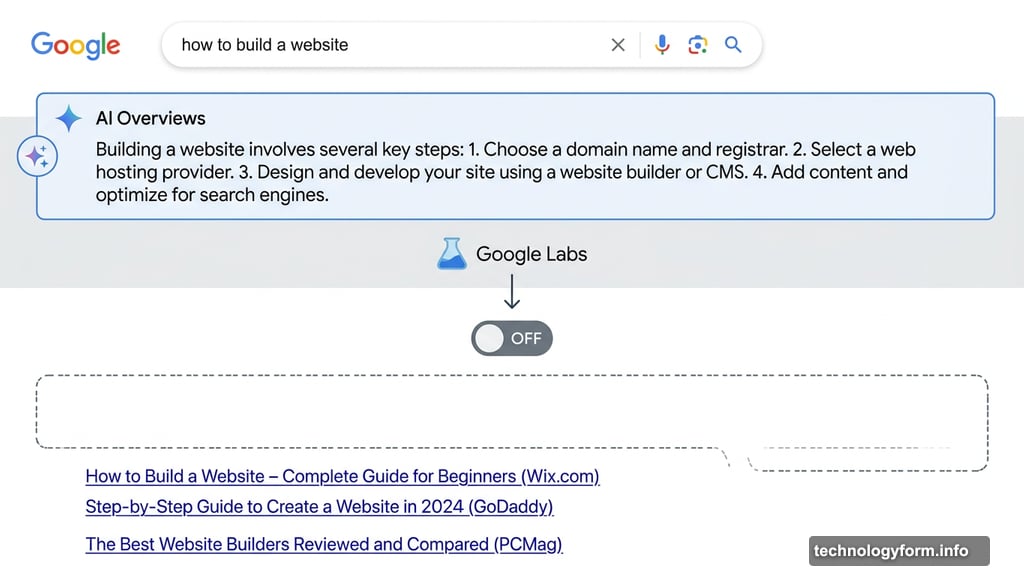
Turning off Workspace smart features doesn’t touch AI Overviews, the AI-generated summaries that appear at the top of Google Search results. Those require their own approach, and honestly, the options here are less satisfying.
There are two things worth trying, and neither is a perfect solution.
Try the Google Labs toggle first. Head to Google Search while signed in, look for the Labs icon (it looks like a small beaker) in the top-right corner, scroll down to AI experiments, and disable the AI Overviews and more experiment. The toggle exists and is worth checking. That said, results vary widely depending on your account and region. The feature operates in over 200 countries, and whether this toggle meaningfully changes your experience seems to depend on factors Google doesn’t fully disclose.
Add “-ai” to your search queries. This one actually works more reliably. Just type your search as normal and add -ai to the end. For example, instead of searching “best coffee makers,” search “best coffee makers -ai”. This filters AI-generated content from your results and works on both desktop and mobile browsers. It’s a small habit to build, but it’s currently the most consistent way to avoid AI Overviews on a search-by-search basis.
When Google’s AI Just Won’t Budge
If the options above don’t go far enough, a few more alternatives are worth considering. Google Search now offers a web filter option that strips results down to traditional links only, with no AI summaries and no extra features layered on top. It’s a cleaner, more old-school search experience.
And if you want a more permanent break, switching to a different search engine entirely is always on the table. DuckDuckGo, Brave Search, and Kagi are all popular options that don’t build AI Overviews into their default search results.
The frustrating reality is that Google hasn’t built a single master toggle for all of this. Each AI feature lives in its own corner of the settings, which means reducing AI across your entire Google experience takes a bit of patience. But it’s genuinely doable. Work through the steps above, and you’ll end up with a noticeably quieter, less AI-saturated version of the Google you already know.