Tired of Gemini Popping Up Everywhere? Here’s How to Turn It Off
Google has been busy. Over the past couple of years, the company has managed to squeeze Gemini into nearly every corner of its apps. Gmail has an AI inbox. Chrome has a chat sidebar. Docs, Sheets, Calendar — Gemini shows up everywhere now.
And honestly? Not everyone wants that.
If you just want to write an email without an AI suggesting your next sentence, or build a spreadsheet without a chatbot offering to help, you’re not alone. Here’s exactly how to strip Gemini out of your Google apps and take back a cleaner, quieter workspace.
Personal Accounts: Two Settings, Not One
Here’s the thing most guides miss. Removing Gemini from your personal Google account actually requires turning off two separate groups of settings. Do only one and you’ll still see AI features lurking around.
The easiest place to handle everything is through Gmail’s web client. So open Gmail in your browser and let’s get started.
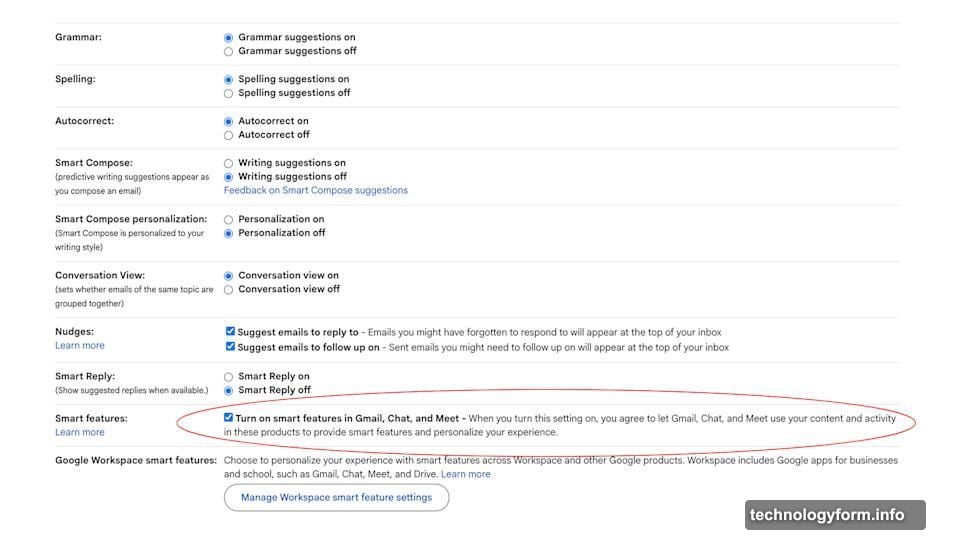
Step one: disable smart features across Gmail, Chat, and Meet.
Click the cog icon in Gmail and select “See all settings.” Under the General tab, scroll down until you find Smart features. Uncheck “Turn on smart features in Gmail, Chat, and Meet.” One quick note — if you’re in Japan, Switzerland, the UK, or anywhere in the European Economic Area, these are already switched off by default.
Step two: kill Workspace-specific smart features.
Still in the same General tab, scroll a little further and click “Manage Workspace smart feature settings.” Here you’ll want to toggle off both “Smart features in Google Workspace” and “Smart features in other Google products.”
The Catch Google Doesn’t Advertise
Before you go flipping every switch, there’s a real trade-off worth knowing about. Disabling the full Workspace smart features bundle doesn’t just remove Gemini. It pulls out features that have been part of Google’s apps for years.
Turn these off in Gmail and the app stops sorting your inbox by priority. A notification actually pops up warning you that smart features are required for inbox categorization. So Google has quietly bundled Gemini together with basic organizational tools, making it harder to remove AI without losing other functionality.
It’s not subtle. Google clearly wants to discourage users from disabling Gemini integration.
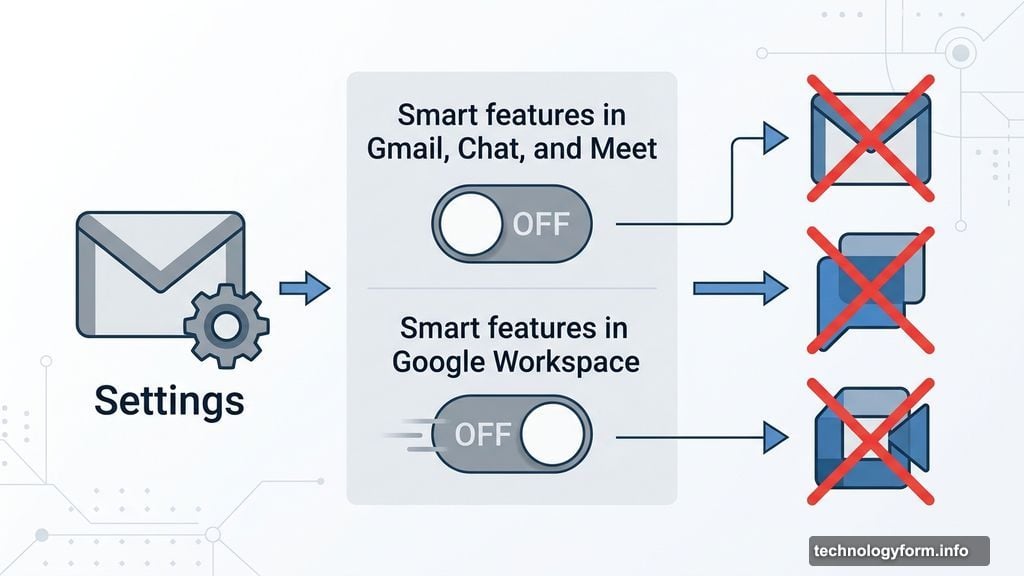
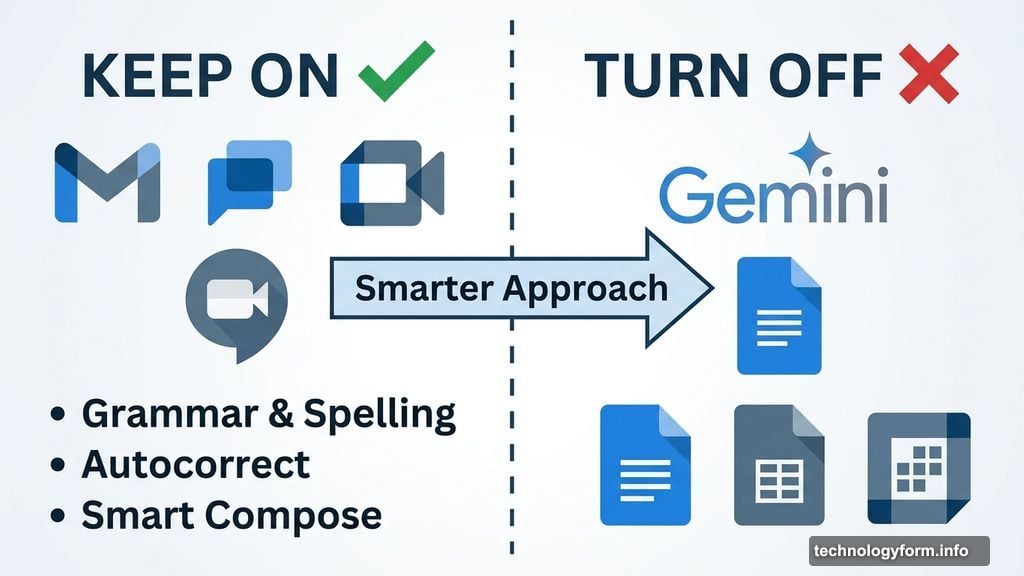
So here’s a smarter approach. Leave the first group of smart features turned on — the Gmail, Chat, and Meet bundle — and only disable the Workspace-specific ones. That way you keep more of the familiar tools while stripping out the deeper Gemini integration.
What’s Inside That First Settings Bundle
If you do decide to pick and choose, here’s what lives inside that first group of smart features. Most are self-explanatory, but a few are worth explaining:
- Grammar and Spelling — basic text corrections
- Autocorrect — fixes typos as you type
- Smart Compose — generates predictive writing suggestions while you draft emails
- Smart Compose personalization — adapts suggestions to match your personal writing style over time
- Nudges — sends you reminders to follow up on emails you’ve left unanswered
- Smart Reply — offers suggested one-click responses to incoming messages
- Package tracking — surfaces shipping updates directly inside Gmail
- Desktop notifications — yes, Google counts this as an AI-powered feature
You can toggle each of these individually. So if you’re fine keeping Smart Reply but want Smart Compose gone, that’s totally doable.
Work Accounts Are a Different Story
If your employer uses Google Workspace, things get more complicated. You can follow all the same steps above inside Gmail’s settings, and most of them will work. But there’s a wall you’ll hit pretty quickly.
Even with Workspace smart features turned off, Gemini keeps showing up inside Docs, Sheets, and other apps. The individual-level settings simply don’t have enough power to remove it completely from a managed account.
The only way to fully remove Gemini from a professional Workspace account is through your organization’s administrator. Your IT or ops team controls that toggle, not you. So if Gemini is bothering you at work, the most effective move is to bring it up with whoever manages your company’s Google setup.
Worth the Effort?
If Gemini genuinely gets in your way, disabling it is worth a few minutes of settings hunting. The personal account process is quick once you know about both settings groups. The work account situation is less satisfying, but at least now you know exactly what’s possible and what requires admin help.
Google clearly prefers you leave everything switched on. But your workspace should work the way you want it to — not the way an AI product roadmap demands.