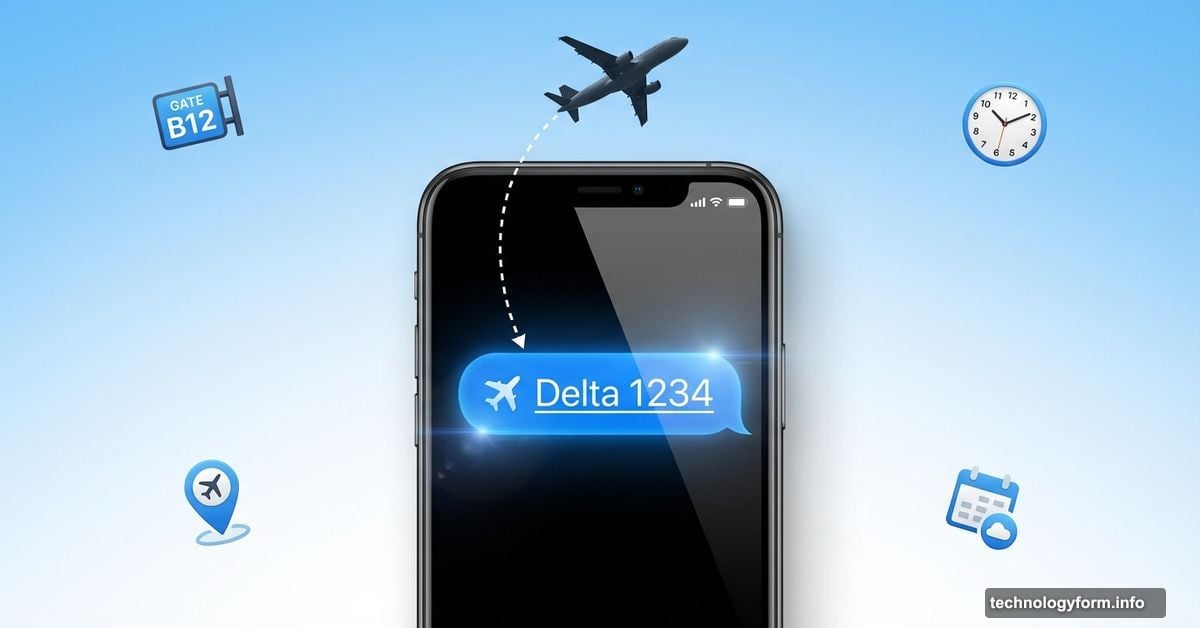
Your iPhone Can Track Flights in Real Time. Here’s the Hidden Trick
Thanksgiving travel kicks off this week. Millions of flights take off, and delays pile up fast. Plus, flight tracking apps clutter your home screen with notifications you don’t need.
But your iPhone already tracks flights. No extra apps required. The feature lives inside iMessage, waiting quietly for you to discover it. Most people never find it because Apple buried the functionality deep in the texting app.
Let me show you how to use it. You’ll get gate changes, delay alerts, and real-time flight maps without downloading anything new.
How the Hidden Flight Tracker Actually Works
Open your Messages app. Type any flight number using this exact format: airline name, space, flight number. For example, “American Airlines 9707” or “Delta 1234.”
The text turns into a clickable link automatically. That underlined text means your iPhone recognizes the flight and can pull live data. Tap it once to see current flight status, gate numbers, and departure times.
Here’s what makes this useful. Your iPhone connects directly to flight databases and updates information every few minutes. So when your gate changes or departure gets delayed, you see it immediately without refreshing anything.
The system works through iMessage only. SMS text messages won’t trigger the flight tracking feature. Make sure the blue bubbles appear when you text someone, not green ones.
Text Yourself Flight Numbers for Quick Access
Send yourself a message with your flight details. Sounds weird, but it creates a permanent flight tracker you can check anytime.
Create a new message to your own number. Type the flight information using the airline-space-number format. Hit send. Now you’ve got a dedicated spot to monitor your flight status without hunting through confirmation emails.
This trick works great when you’re flying multiple legs. Send yourself all flight numbers in one message. Each one becomes its own clickable tracker. Check them all with a few taps instead of switching between airline apps.
Your iPhone keeps these messages searchable too. So next time you fly the same route, just search for that old flight number and you’ve got instant tracking set up again.
Spotlight Search Tracks Flights Too
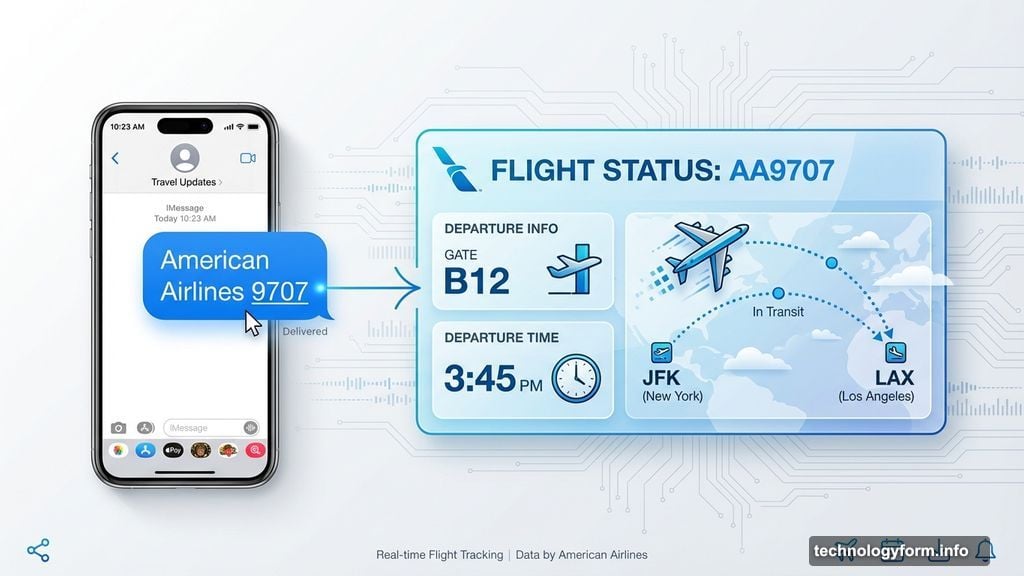
Swipe down from your home screen to open Spotlight Search. Type any flight number directly into the search bar. Flight status appears at the top of search results.
This method feels faster than opening Messages when you need quick information. No apps to launch, no threads to find. Just swipe and type.
Spotlight pulls the same live data as the iMessage feature. You get gate assignments, departure times, and delay notices. The information updates automatically when something changes.
Try it on your Mac computer too. Spotlight Search on macOS tracks flights the same way. Type a flight number and current status appears instantly.
Different Text Formats That Work
The airline-space-number format works best. But your iPhone recognizes several variations.
Try these options:
- No spaces: “AmericanAirlines9707”
- Abbreviated airline codes: “AA 9707” or “AA9707”
- Full airline name with space: “American Airlines 9707”
Some airlines respond better to certain formats. International carriers especially need the full airline name spelled correctly. Abbreviations sometimes fail to trigger the tracking feature.
When in doubt, use the complete airline name with a space before the flight number. That format succeeds most consistently across different carriers.
What the Flight Preview Shows You
Tap “Preview Flight” when the option appears. A detailed window opens with everything you need.
At the top sits a real-time map. Two cities connect with a line, and a tiny airplane icon moves along that line showing current flight position. The plane updates its location every few minutes as the actual aircraft travels.
Below the map, you’ll find:
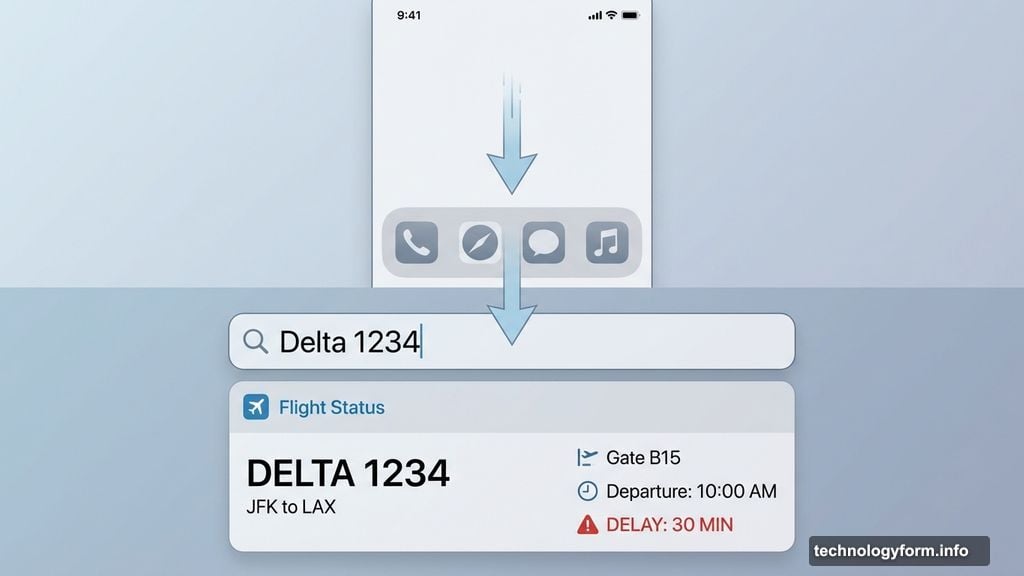
- Current flight status (on time, delayed, boarding, arrived)
- Departure and arrival terminals
- Gate numbers for both airports
- Scheduled and actual departure times
- Total flight duration
- Baggage claim carousel number
Swipe left on the details section to toggle between outbound and return flights when you’ve saved both. This works great for round trips where you want to monitor both legs simultaneously.
When the Feature Doesn’t Work
Flight tracking fails under specific conditions. Flights more than a few months out show “Flight information unavailable.” The system only tracks near-term departures.
Past flights display the same unavailable message. Once a plane lands and passengers deplane, tracking data disappears from the database.
Airlines recycle flight numbers daily. So searching for a flight number might show today’s departure instead of your flight next week. Always verify the date matches your travel plans.
International flights sometimes don’t appear in the system. Budget carriers and regional airlines might not share data with Apple’s flight tracking service. Major carriers like American, Delta, United, and Southwest work consistently.
iMessage Still Beats Dedicated Apps
Flight tracking apps send constant notifications. Most people don’t need alerts about every minor delay or gate change. You just want quick access to current information.
Your iPhone’s built-in tracker provides data on demand without notification spam. Check status when you want, ignore it when you don’t. No accounts to create, no permissions to grant, no battery drain from background updates.
Plus, the feature works everywhere iMessage works. Send flight details to family members and they get the same clickable tracking links. Everyone stays informed without downloading matching apps.
Airlines change their apps frequently. They redesign interfaces, move features around, and break familiar workflows. Your iPhone’s flight tracker stays consistent across iOS updates. The same simple tap-to-track method works year after year.
Travel smart this Thanksgiving. Text yourself those flight numbers now, before you even leave for the airport.