Google’s AI Won’t Stop? Here’s How to Turn It All Off
Google’s AI is everywhere now. Open Gmail, and Gemini wants to write your emails. Run a search, and AI Overviews hijack your results before you even see a real link.
Some of it is genuinely useful. But if you just want to check your calendar without a chatbot chiming in, the constant AI presence gets exhausting fast. The good news? You can dial most of it back. The catch? There’s no single master off switch. Instead, you’ll need to tackle each piece separately.
Here’s exactly how to do it.
Google Workspace Smart Features Are the Biggest Win
If you only make one change, this is the one. Turning off Google Workspace smart features strips out a huge chunk of AI across Gmail, Drive, Docs, Sheets, and Slides all at once.
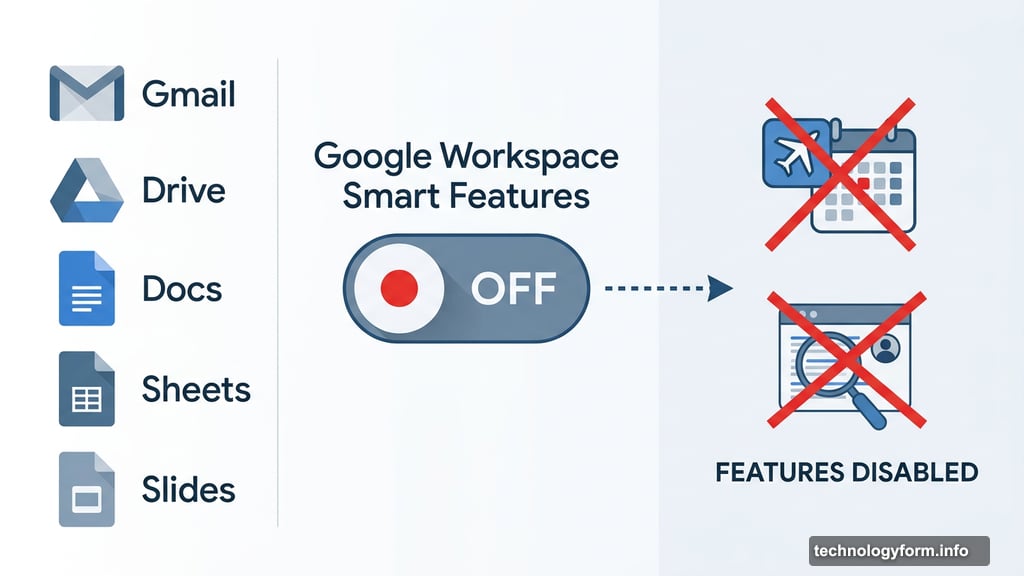
Before you flip the switch, though, know what you’re giving up. Handy things disappear too. For instance, the feature that automatically pulls a flight booking from your Gmail into Google Calendar? Gone. Personalized search results? Also gone. So weigh that trade-off honestly before proceeding.
Still want to move forward? Here’s how:
- Sign into your Gmail account
- Click the settings icon (top right corner)
- Select See all settings
- Under the General tab, scroll down to Google Workspace smart features
- Click Manage Workspace smart feature settings
- Toggle off both options: Smart features in Google Workspace and Smart features in other Google products
That’s genuinely it. Those two toggles do more heavy lifting than anything else on this list. Note that Gemini icons will still appear in the apps because Google needs a way for you to re-enable things easily. But the active AI assistance goes quiet.
AI Overviews in Google Search Are a Separate Beast
Here’s where things get a little frustrating. Disabling Workspace smart features does nothing to AI Overviews in Google Search. Those are controlled entirely differently, and honestly, there’s no clean official way to kill them completely.
But you have two practical options worth trying.
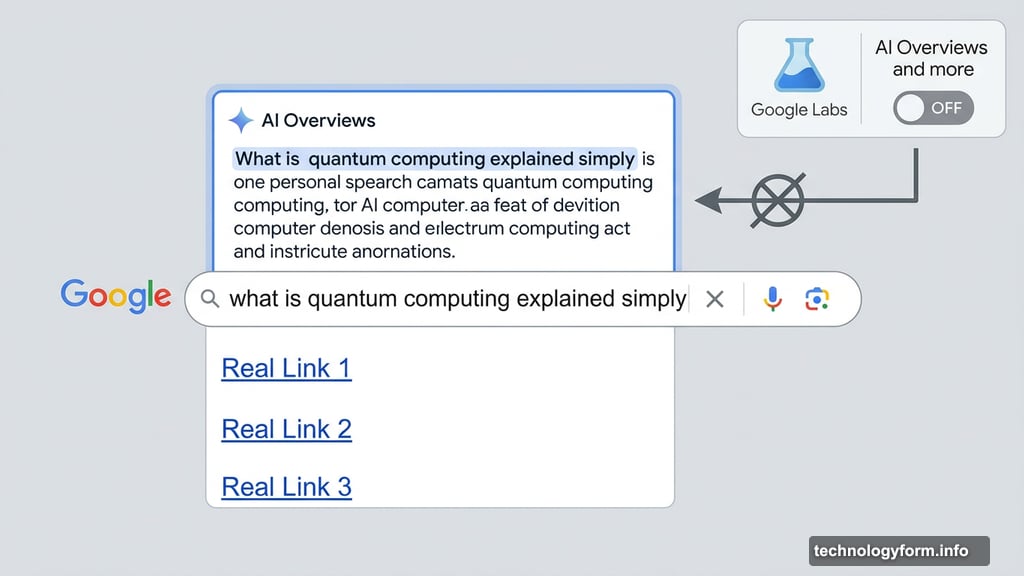
Try the Google Labs toggle first. While signed into your Google account, head to Google Search and click the Labs icon (it looks like a beaker) if it’s visible. Scroll down to AI experiments, find AI Overviews and more, and switch it off.
Fair warning: results vary. The feature is available in over 200 countries, and toggling the Labs experiment off doesn’t consistently remove AI Overviews from search results. It’s still worth doing, but don’t expect miracles.
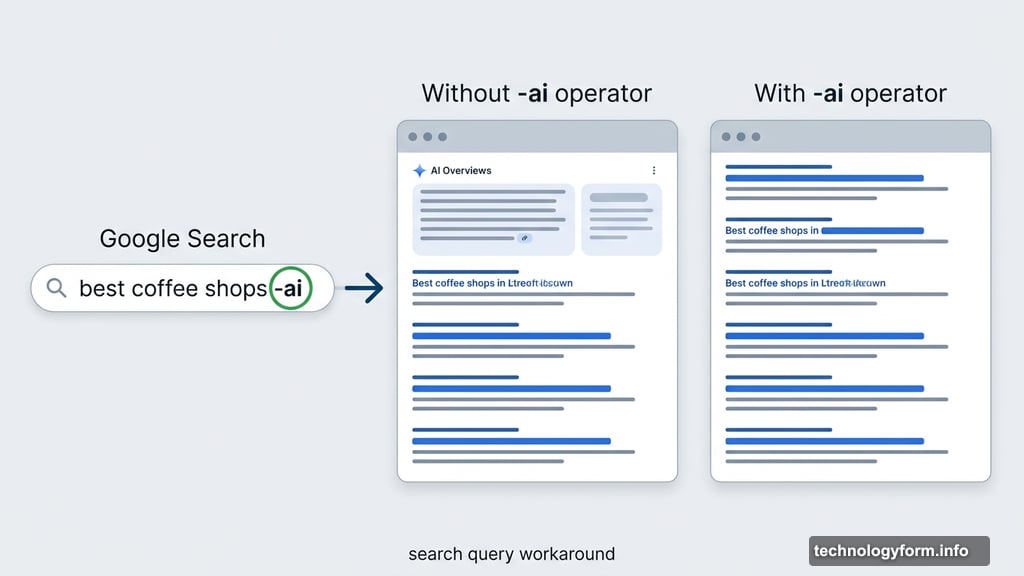
Add “-ai” to your search queries instead. This sounds almost too simple, but it works better than the Labs toggle in practice. Just type your search term normally and add -ai to the end. So instead of searching “best hiking boots,” you’d search “best hiking boots -ai.” It works on both desktop and mobile, and it filters out a surprising amount of AI-generated content from your results.
When You Want to Go Even Further
Those two approaches cover most people. But if you want to push deeper, a few more options exist.
Google offers a Search web filter that gives you more control over what appears in your results. It takes a bit more setup, but it’s worth exploring if the -ai trick alone isn’t cutting it.
And of course, switching search engines entirely remains the most reliable option. DuckDuckGo, Brave Search, and others don’t layer AI Overviews on top of every result by default. Similarly, browsers like Firefox or Brave give you more built-in control over how Google integrates into your everyday browsing.
None of this is as satisfying as one clean toggle that turns everything off. Google designed these features to be sticky, and they’re woven into workflows in ways that make them hard to fully escape. But between the Workspace smart features settings and the -ai search trick, you can get back to something that feels a lot more like the Google you actually signed up for.