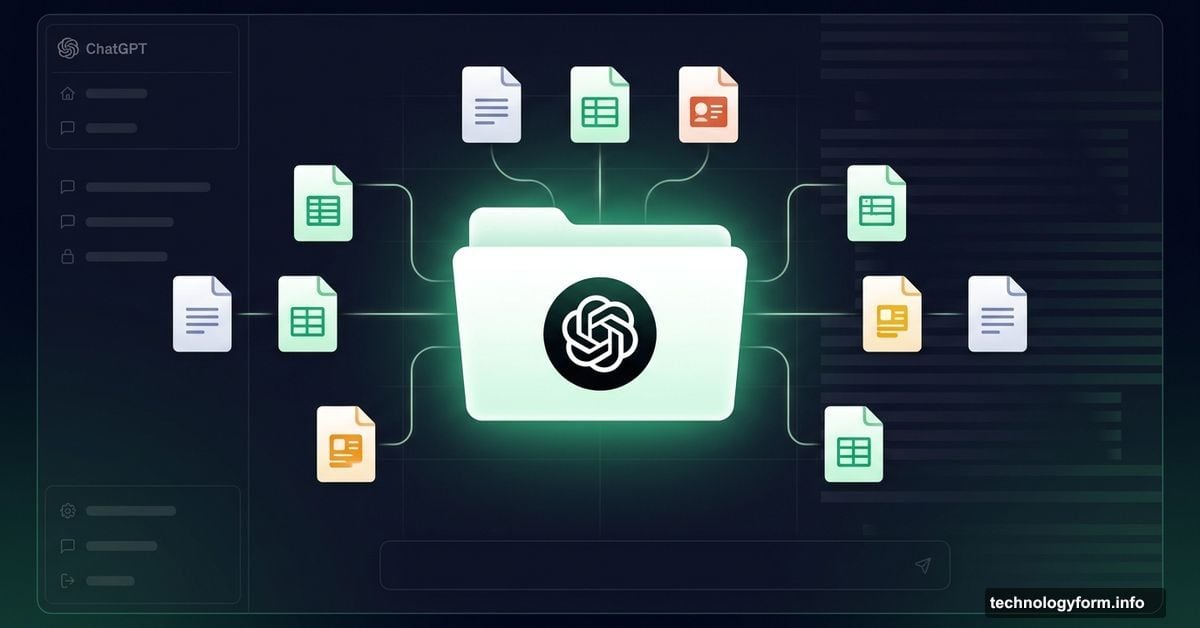
ChatGPT Library Lets You Store and Retrieve Files Long-Term
OpenAI just gave paid ChatGPT users something they’ve been quietly waiting for: a proper home for all their uploaded files.
The new ChatGPT Library feature lets you store, browse, and pull up documents directly inside the chat interface. No more hunting through old conversations to find that spreadsheet you uploaded three weeks ago.
One Central Place for All Your Uploads
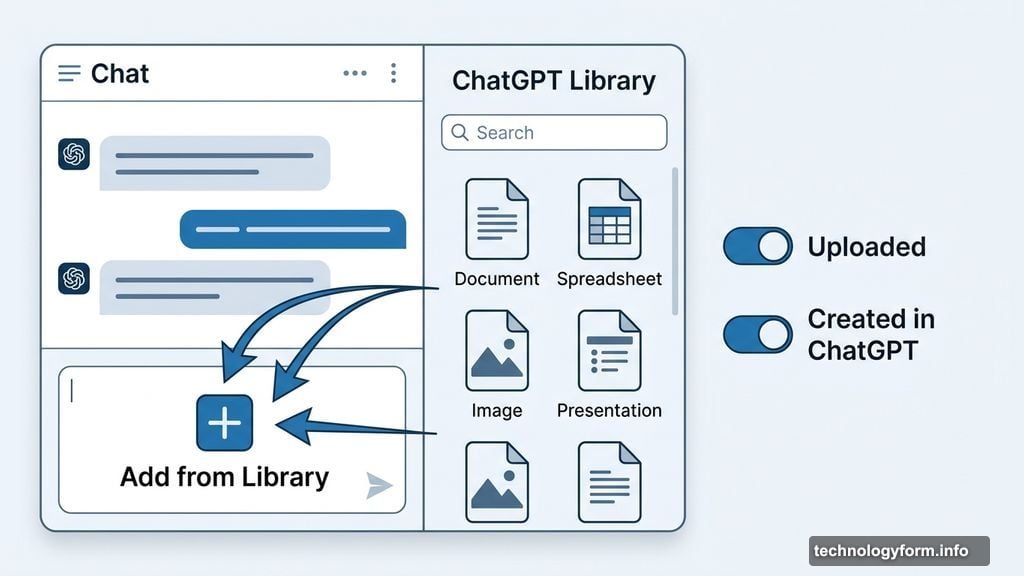
Here’s how it works. Every file you upload through the normal chat window gets automatically saved to your Library, as long as you’re logged in. That includes documents, spreadsheets, presentations, and images.
The Library lives in a left-hand sidebar that’s fully searchable. Plus, you can filter your files by type or whether you uploaded them yourself versus created them inside ChatGPT. It’s a clean, straightforward system that makes a lot of sense once you see it.
One thing worth noting: your AI-generated images don’t land here. Those stay in the separate Images tab. So the Library focuses specifically on files you bring in or build through chat.
Paid Plans Only, For Now
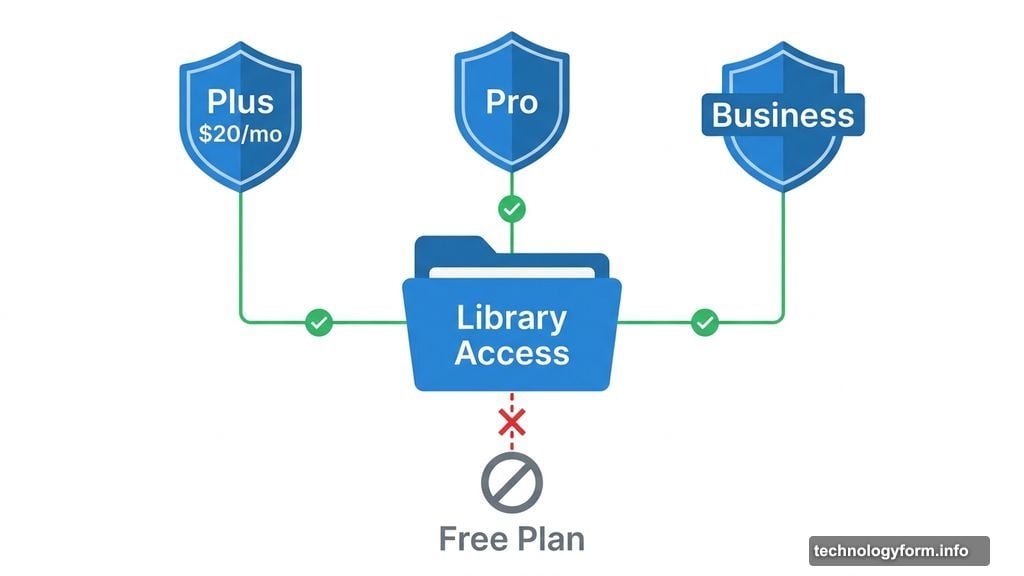
There’s a catch. ChatGPT Library is currently limited to Plus, Pro, and Business subscribers. That means you need to spend at least $20 per month to access it.
Free users are out of luck for now. OpenAI hasn’t confirmed when or if the feature will roll out more broadly.
Also, you need to be online to access your files. There’s no offline mode, so don’t count on pulling up saved documents when you’re traveling without internet access.
File Size Limits to Know About
The Library isn’t unlimited storage. OpenAI set some specific caps worth keeping in mind.
Individual files max out at 512MB. Documents and chat conversations can hold up to 2 million tokens, which works out to roughly 2 million characters. Spreadsheets and CSV files have a tighter limit of 50MB, and images top out at 20MB.
For most everyday use, those limits are generous. But if you’re working with large data files or lengthy research documents, you’ll want to check your file sizes before uploading.
Using Your Files in Future Chats
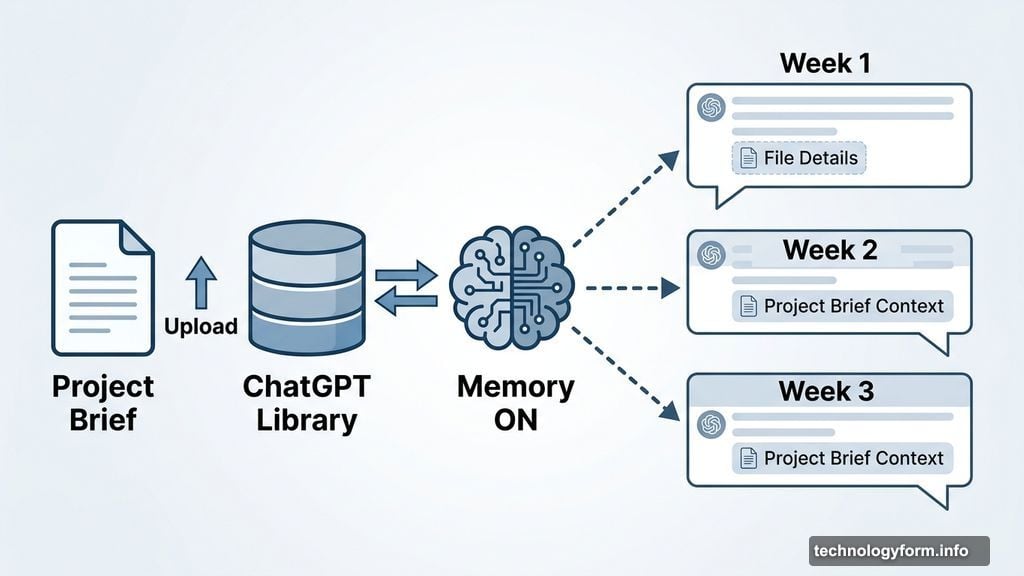
The Library gets more interesting when you pair it with ChatGPT’s Memory feature. Turn that on, and ChatGPT can reference your saved files in future conversations without you having to re-upload anything.
So imagine uploading a project brief once and having ChatGPT pull relevant details from it weeks later during a different conversation. That’s the kind of workflow improvement this feature is really designed for.
To bring a saved file into a chat, click the plus sign next to the chat input box and choose “Add from Library.” Simple enough.
Deleting Files Takes a Little Patience
Removing a file isn’t instant. You can select any file in the Library sidebar and click delete, or use the trash icon next to the file name. But OpenAI won’t actually remove the file for up to 30 days after you request deletion.
There are also exceptions. If a file is needed for security or legal reasons, or if the chat has already been stripped of your identifying information, OpenAI may retain it regardless. Worth knowing if privacy is a priority for you.
What OpenAI Is Building Toward
The Library feature fits into a bigger picture for OpenAI. The company has been working toward a “superapp” desktop experience that pulls ChatGPT, its coding tool Codex, and its AI-assisted browser Atlas into one unified interface.
Meanwhile, OpenAI announced this week that it’s shutting down Sora, its AI video app, as it shifts focus toward coding and productivity tools. Faster, developer-focused models are already rolling out to help with tasks like debugging code, putting competitive pressure on tools like Anthropic’s Claude Code.
The Library feels like one more brick in that productivity-focused foundation. It’s not flashy, but it solves a genuinely annoying problem for anyone who uses ChatGPT regularly for document-heavy work.
If you’re on a paid plan and haven’t found the Library yet, it’s worth a few minutes to explore. The searchable sidebar alone saves more time than you’d expect.