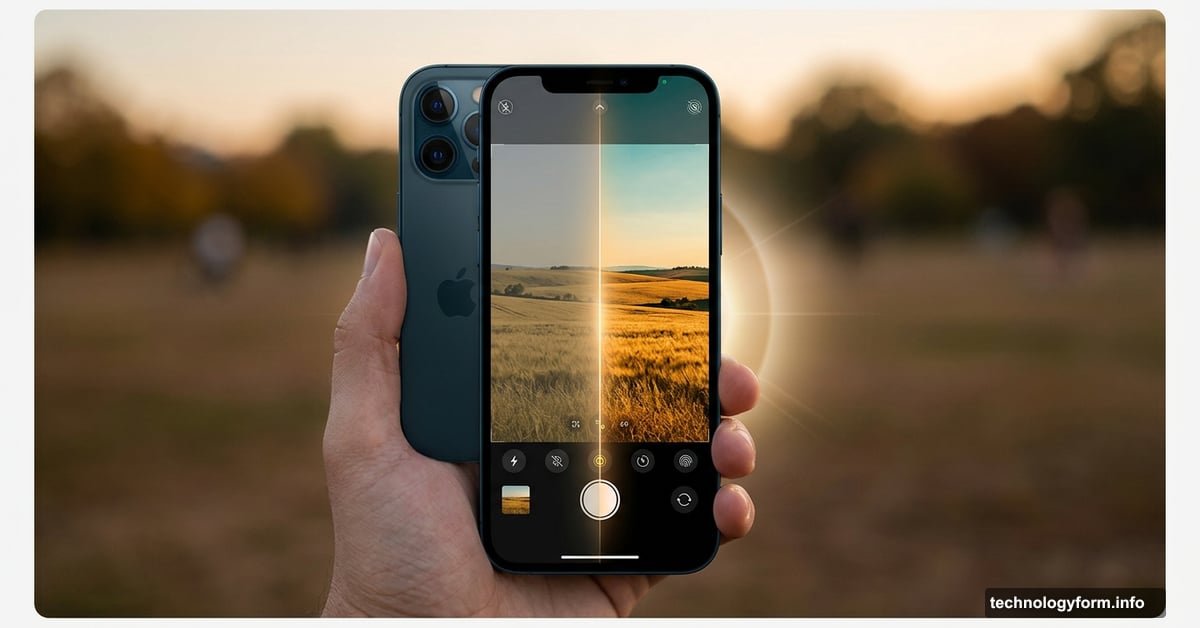
Apple’s Photographic Styles Transformed How I Edit iPhone Photos
Most iPhone camera features go unnoticed. Photographic Styles might be the most underused one of them all.
Apple quietly introduced next-generation Photographic Styles with the iPhone 16 series in 2024. The feature gives you serious creative control over your photos without downloading a single extra app. And if you haven’t explored it yet, you’re genuinely missing out on one of the most personal editing tools built into any smartphone camera.
What Makes These Styles Different From Basic Filters
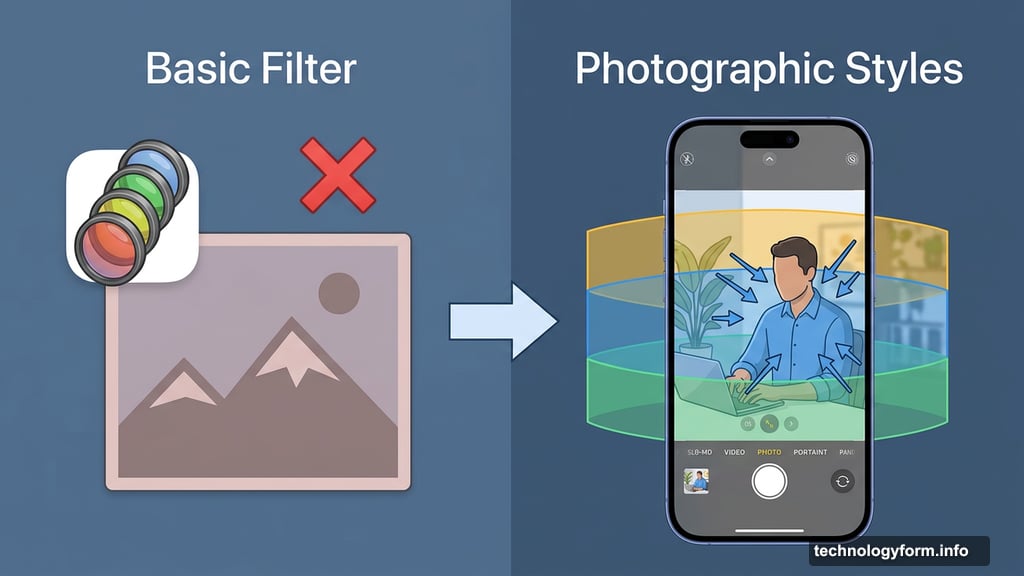
Regular filters treat your whole photo the same. They slap a color effect across everything equally, whether it makes sense or not.
Photographic Styles work differently. Your iPhone actually analyzes the depth of the image and adjusts specific colors in specific areas. So if you apply a warm tone to a selfie, it changes your skin without turning the sky or background the same shade.
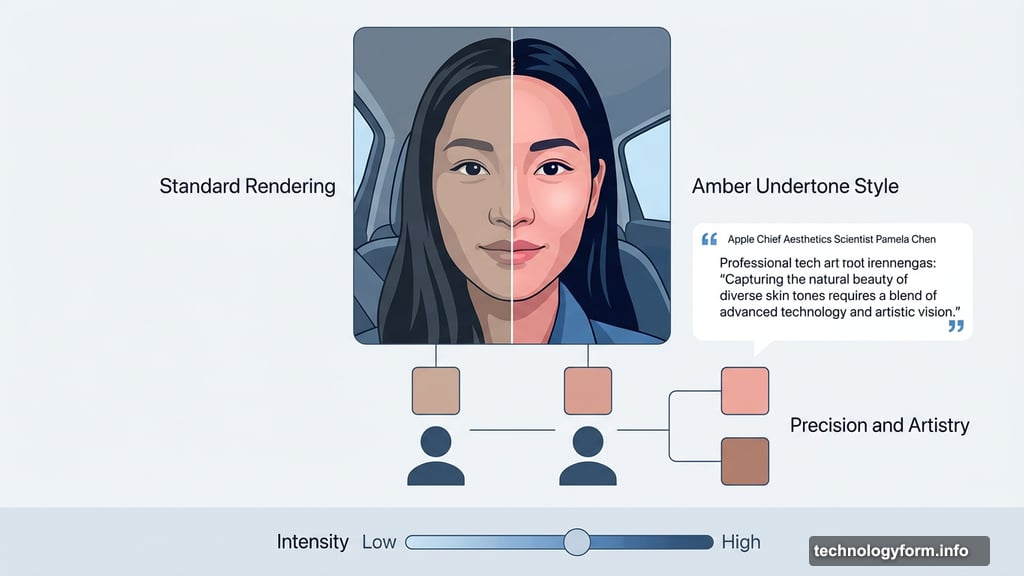
Apple’s Chief Aesthetics Scientist for Camera and Photos, Pamela Chen, explained this in an interview with PetaPixel. Even two people with identical skin tones can have “genuinely different preferred renderings of themselves in pictures.” Skin tone is personal, she said, and rendering it well requires both “precision and artistry.”
That philosophy shows up clearly in how the feature actually works.
How the Depth-Aware Processing Changes Everything
Here’s a real example. In a selfie I shot for this piece, the standard color rendering looked flat. I applied an amber-toned style and got a pink-gold look that felt much more natural to me.
But when I applied those exact same settings to a different photo, it didn’t work at all. That’s the beauty of it. The style isn’t a one-size-fits-all preset. Your iPhone reads the color relationships in each scene and applies changes accordingly.
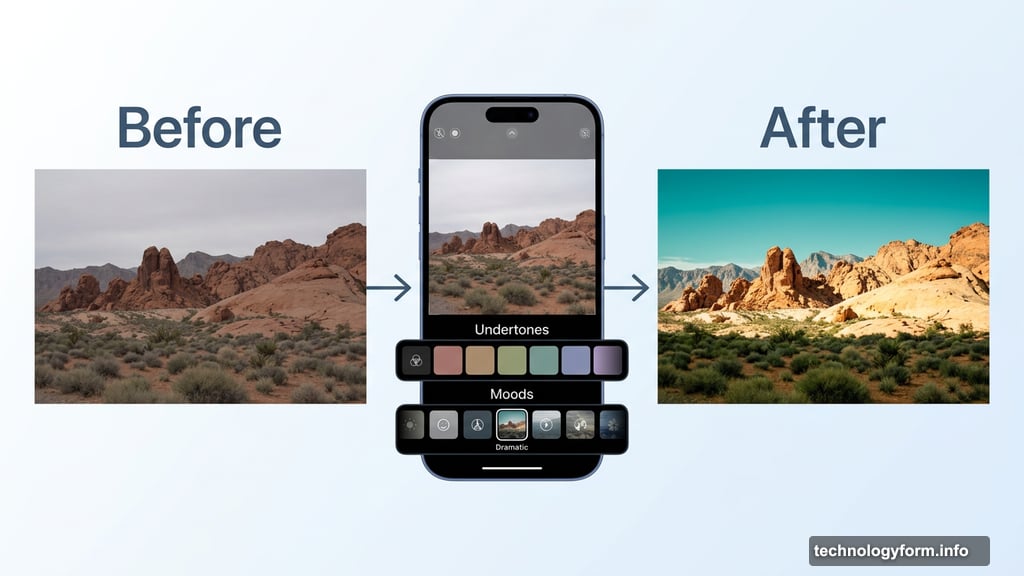
In landscape shots, I used the Dramatic mood to shift the sky toward a teal shade while brightening the sunlit areas of the Valley of Fire. The mountains popped. The whole image felt more alive. Yet the greens and browns in the foreground stayed completely untouched.
That kind of selective, intelligent color editing used to require desktop software. Now it’s built into your Camera app.
Undertones and Moods: Your Two Main Controls
The latest Photographic Styles give you two categories to work with: Undertones and Moods.
On iPhone 17 series models, you get seven Undertones and nine Moods to choose from. You swipe through them directly in the Camera app viewfinder before you shoot. Sliders below the viewfinder let you adjust intensity so you can dial in exactly how strong the effect looks.
The key thing here is that these aren’t permanent filters. They’re smart adjustments that respect the natural tones already in your image. You’re enhancing what’s there, not overwriting it.
It takes a few tries to figure out which combinations work best for different situations. But once you find your go-to settings, the editing process becomes much faster and more consistent.
How to Turn On Photographic Styles Right Now
Finding the feature is easy once you know where to look. Here’s exactly how to use it:
- Open the Camera app on your iPhone running iOS 26
- Swipe up just below the viewfinder to access camera settings
- Tap Styles, then swipe left and right to preview your options
- Drag the slider to adjust tone and color intensity
- Tap X to close the Style menu and start shooting
You can also set a default style by going to Settings > Camera > Photographic Styles. That way every photo you take starts with your preferred look already applied.
One important thing to know: if you want to edit Photographic Styles on your photos later in the Photos app, you need to shoot in High Efficiency format. I learned this the hard way after a full photowalk, only to find my shots were saved in Most Compatible format instead. To check your setting, go to Settings > Camera > Formats and tap High Efficiency.
Which iPhones Support the New-Generation Styles
Apple first launched Photographic Styles back in 2021 with the iPhone 13 series. That original version offered five basic presets: Standard, Rich Warm, Vibrant, Warm, and Cool. Those styles work on every iPhone since the third-generation iPhone SE and iPhone 13 lineup.
But the next-generation Photographic Styles with depth awareness and granular controls are a different story. Those require more processing power and are only available on:
- iPhone 16, 16 Plus, 16 Pro, 16 Pro Max
- iPhone 17, 17 Pro, 17 Pro Max
- iPhone Air
Worth noting: the iPhone 16E and iPhone 17E don’t support the newer generation of Photographic Styles. They’re limited to the original preset options.
Why This Feature Is Worth Your Time
What I love most about Photographic Styles is that it pushes you to think about photography differently. You’re not just pointing and shooting. You’re making intentional choices about mood, color, and tone before you even press the shutter.
The feature won’t appeal to everyone. Some people prefer completely natural-looking photos. But if you’ve ever wished your iPhone photos had a bit more personality or character without needing heavy editing afterward, Photographic Styles is worth spending an afternoon exploring.
Try it on a walk this weekend. Test a few different combinations. You’ll quickly find a style that feels distinctly yours, and that’s exactly what Apple was going for.