Your iPhone Is Charging Too Slowly. Here’s How to Fix It Fast
Watching your battery percentage crawl up one digit at a time is genuinely stressful. Especially when you’re already running late and your phone sits at 12%.
The good news? Slow charging usually comes down to a handful of fixable problems. Most of them take about 30 seconds to address. So let’s work through each one and get your iPhone charging the way it should.
Upgrade to a Fast Charger First
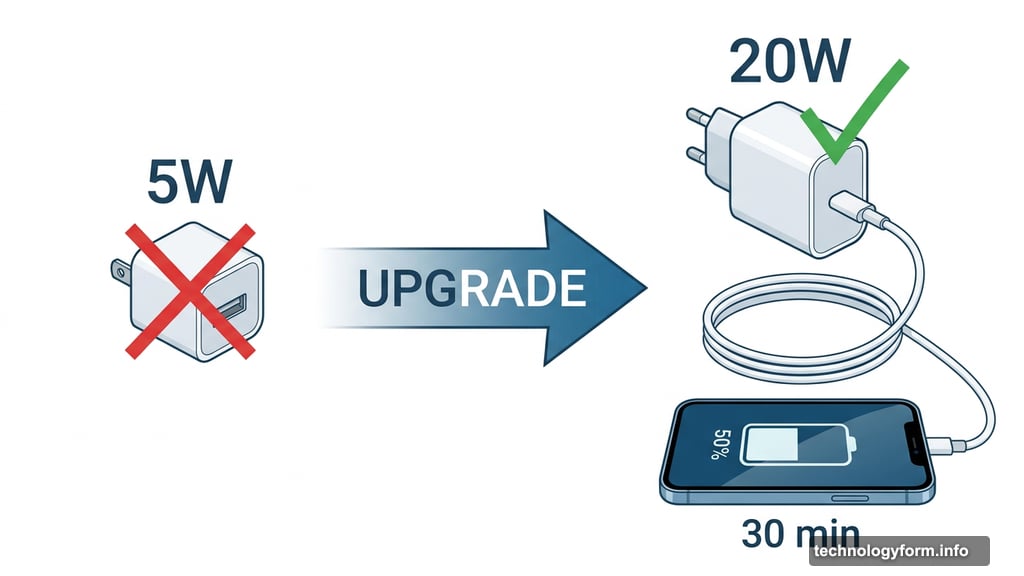
This is the single biggest upgrade you can make. A 20-watt power adapter with a USB-C cable can take your iPhone from dead to 50% in about 30 minutes. That works on any iPhone 8 or later.
Apple stopped including power adapters in the box when you buy a new iPhone. They only include the cable now. So if you’re still using an old 5-watt cube from years ago, that’s almost certainly your problem.
You can grab Apple’s official 20-watt adapter from Apple or Amazon. Third-party options work too, but make sure the brick is at least 20 watts. For iPhone 12 and later, anything less won’t trigger fast charging at all.
One helpful note for iOS 26 users: Apple now shows a “Slow Charger” notification on your lock screen when it detects an underpowered brick or old cable. So your phone will actually tell you when something’s wrong.
MagSafe and Qi2 Beat Regular Wireless Charging
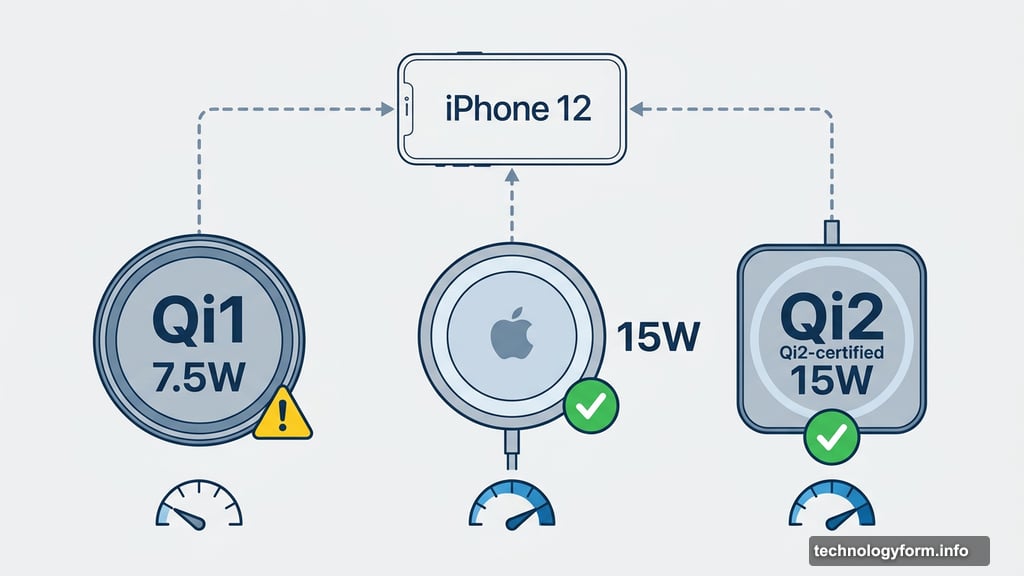
Wireless charging is the second-fastest option, but only if you’re using the right charger. MagSafe and Qi2-certified chargers deliver up to 15 watts on an iPhone 12 or later. That gets you from dead to about 30% in 30 minutes.
A standard Qi1 wireless charger, on the other hand, maxes out at 7.5 watts. That’s barely faster than a 5-watt wired charger. So if you’re using a cheap wireless pad from a few years ago, you’re not getting the speed benefit you think you are.
Also worth knowing: magnetic wireless chargers that aren’t officially MagSafe-certified also charge at that slower 7.5-watt rate. The certification matters more than the magnet.
Stop Charging From Your Laptop
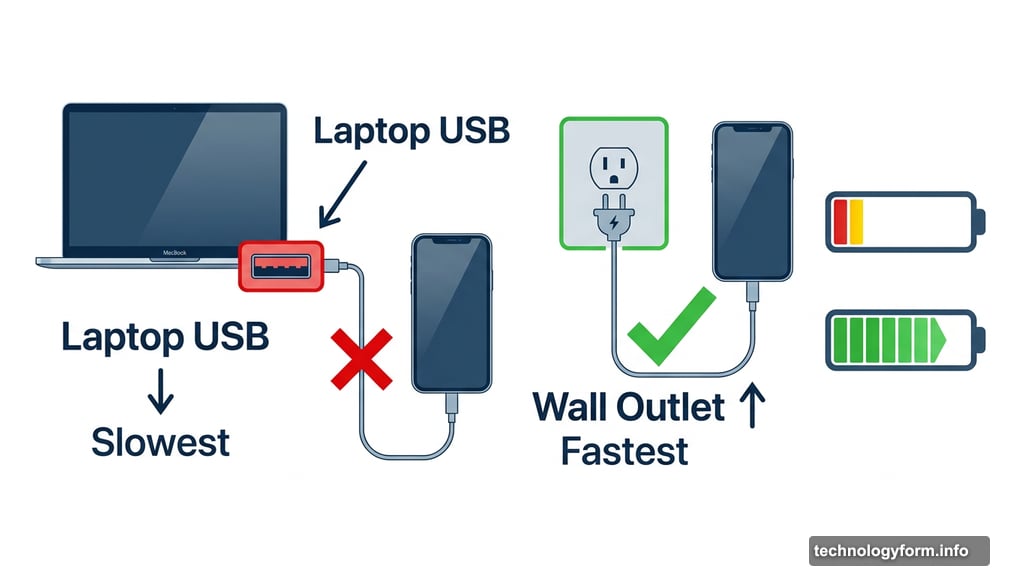
This one surprises people. Your laptop’s USB port, whether USB-A or USB-C, delivers less power than even a basic wall adapter. It’s one of the slowest ways to charge your iPhone.
Older computers with faulty ports or incompatible cables make things even slower. It might feel convenient to keep your phone plugged into your MacBook at your desk, but you’re paying for that convenience in charging speed.
Whenever you can, use a wall outlet instead.
![iPhone connected to a fast 20-watt USB-C wall charger on a wooden desk]
Put Your Phone Down While It Charges
This sounds obvious, but it makes a real difference. Streaming video, scrolling social media, or playing games while your phone charges slows everything down. Your screen and processor consume power even as the battery tries to fill up.
If you want the fastest charge possible, set your phone face-down and leave it alone.
Turn It Off Completely for Maximum Speed
Even with the screen off, your iPhone keeps working in the background. Apps refresh, notifications come in, and various processes tick along quietly. All of that uses power.
Turning your iPhone completely off while it charges removes all of that drain. One important tip here: plug it in first, then power it down. If you turn it off and then plug it in, it sometimes powers back on automatically.
Airplane Mode Is a Great Middle Ground
If turning your phone off feels too drastic, airplane mode is a solid compromise. It kills cellular, Wi-Fi, and Bluetooth all at once. Those wireless radios pull a surprising amount of power, and disabling them lets your battery fill up faster.
The upside is you can flip airplane mode off for a minute to check messages, then switch it back on. You stay somewhat reachable without sacrificing too much charging speed.
Keep Your iPhone Cool While Charging
Heat is bad for iPhone batteries. When your phone gets too warm, iOS will actually pause charging temporarily to prevent damage. You might not even notice it happening unless you check.
Head to Settings > Battery to see if your battery has been on charging hold due to temperature. Moving your phone somewhere cooler, away from direct sunlight or a warm surface, prevents these pauses and keeps the charge moving steadily.
These Settings Help Too
A few built-in iPhone settings quietly drain your battery even when the screen is off. Turning them on while you charge squeezes out extra speed without requiring anything new.
Low Power Mode reduces background app refresh, automatic downloads, and certain display features. Dark Mode helps a little, especially on OLED screens. And dropping your screen brightness all the way down removes one of the biggest power drains on any phone.
You don’t need all three. But even one of them makes a measurable difference when every percentage point counts.
Optimized Battery Charging Might Be Slowing You Down
Apple includes a feature called Optimized Battery Charging that deliberately slows your charge rate to protect long-term battery health. It typically kicks in during overnight charging when your phone sits plugged in for hours.
If you’re in a hurry and need a fast charge right now, it’s worth temporarily turning this off. Go to Settings > Battery > Battery Health and toggle off Optimized Battery Charging. Just remember to turn it back on later. Long-term, it does help your battery last longer.
Check Your Battery Health
Sometimes slow charging isn’t about your charger or your settings at all. It’s about your battery itself. A degraded battery doesn’t hold charge well, drains faster, and can make everything feel sluggish.
Go to Settings > Battery > Battery Health. If you see a warning like “Your battery’s health is significantly degraded,” that’s Apple telling you it’s time for a replacement.
Battery replacement pricing depends on your iPhone model and service coverage. For the iPhone 15 series, Apple estimates about $99. You can check current pricing on Apple’s iPhone Battery Service page. A fresh battery genuinely feels like a new phone, and it solves slow charging problems that no cable or setting tweak can fix.
Most iPhone charging issues come down to three things: the wrong charger, the wrong habits, or an aging battery. Work through these fixes in order and you’ll likely solve the problem before you even need to think about new hardware. And next time you’re running late with 5% battery, you’ll know exactly what to do.