ChatGPT Voice Gets Smarter with Inline Visuals and Transcripts
OpenAI just changed how you talk to ChatGPT. Voice mode now shows what it’s saying while you chat.
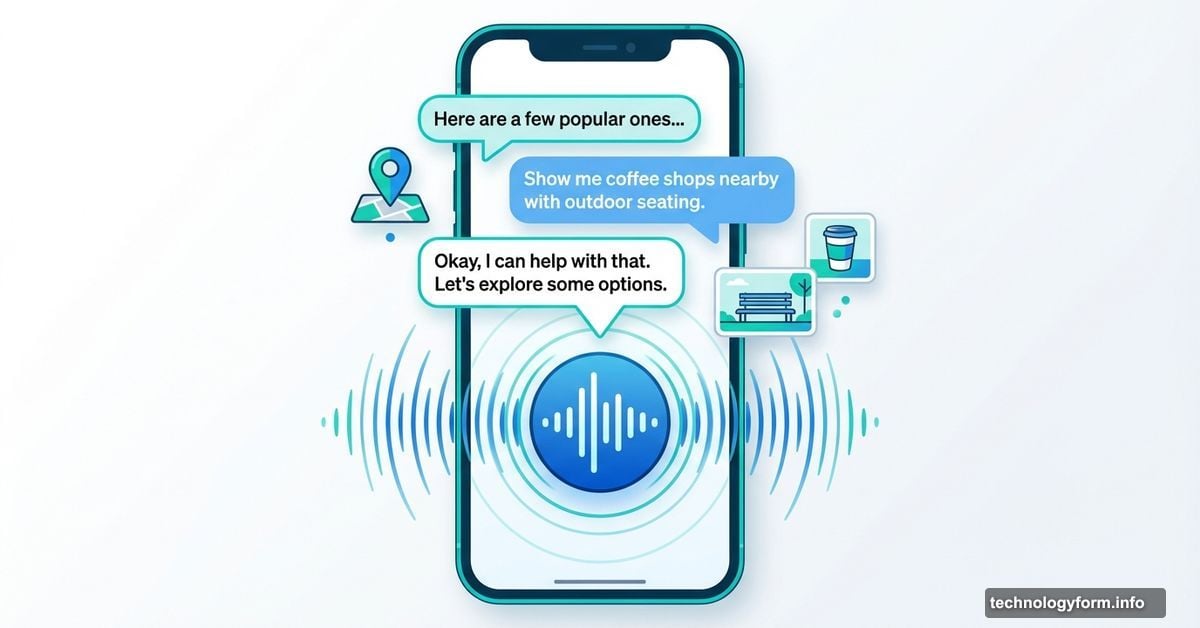
Before, starting a voice conversation launched a separate interface. Now it stays right in your chat window. Plus, you get transcripts and visuals alongside the voice responses. That’s a big upgrade for anyone who uses ChatGPT to research, plan, or solve problems hands-free.
Voice Mode Goes Inline
Tap the waveform icon next to ChatGPT’s text field. Voice mode starts instantly without switching screens.
Your conversation stays in the main chat thread. So you can see text transcripts of everything you said and everything ChatGPT responded. That makes it easy to reference earlier parts of the conversation or copy specific details.
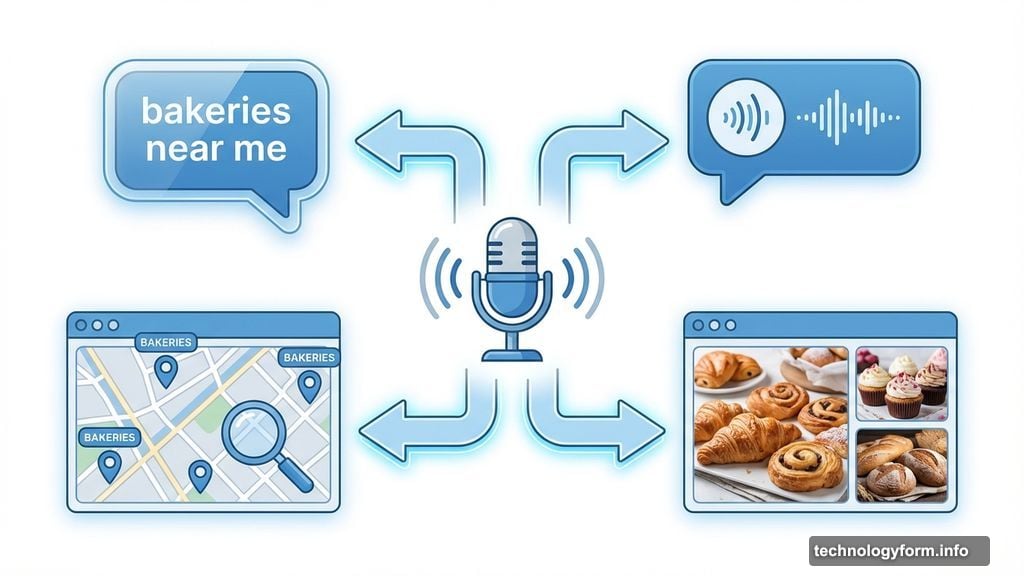
Moreover, ChatGPT now displays relevant visuals during voice chats. Ask about bakeries near you? It shows a map with popular spots. Request pastry recommendations? Photos appear alongside the voice explanation.
This inline approach feels more natural. You’re not juggling multiple interfaces. Everything happens in one place.
Visuals Make Voice More Useful
ChatGPT Voice already handled multimodal prompts. You could show it images or videos while talking. But responses were voice-only until now.
Now the AI matches your multimodal input with equally rich output. In OpenAI’s demo, ChatGPT displayed maps and photos while describing bakery options. That’s way more helpful than voice alone.
Think about practical scenarios. Planning a trip? ChatGPT can show routes while explaining directions. Comparing products? It displays images while breaking down differences. Learning something technical? Diagrams appear as the AI walks you through concepts.
Google tried something similar with Gemini Live. Their AI highlights specific parts of live video with overlays. ChatGPT’s approach isn’t quite as reactive yet. But combining voice and visuals still makes conversations more informative and engaging.
The Old Interface Still Exists
Some users prefer the original Voice mode experience. OpenAI kept that option available.
Head to ChatGPT’s Settings. Find the Voice Mode section. Toggle on Separate mode. You’re back to the orb-filled interface that launched with Voice originally.
Why offer both? Different tasks suit different interfaces. The inline mode works great for research sessions where you want transcripts and visual references. The separate mode might feel better for quick verbal exchanges or when you want fewer distractions.
So OpenAI isn’t forcing everyone into one experience. Choose what fits your workflow.
Multimodal AI Keeps Evolving
This update represents where AI assistants are heading. Text-only responses feel limiting once you’ve experienced richer interactions.
Voice adds convenience. Visuals add clarity. Transcripts add reference value. Combining all three creates a more complete assistant experience. You’re not constantly switching between typing, talking, looking, and remembering.
For now, this feature lives in ChatGPT’s standard interface. But it’s easy to imagine these capabilities spreading to mobile apps, browser extensions, and eventually integrated everywhere you work. The gap between “asking questions” and “having answers immediately displayed” keeps shrinking.
OpenAI made a smart move keeping voice conversations contextual. Your chat history flows naturally whether you’re typing or talking. That continuity matters more than people realize. Breaking conversations into separate modes always felt clunky.
Now it just works the way you’d expect. Talk when you want. Type when you prefer. See transcripts and visuals regardless. That’s how AI assistants should function.